

Apps take forever to open. The screen freezes mid-scroll. Switching between two apps feels like wading through mud. If that sounds familiar, your phone is probably showing its age, but that doesn’t mean it’s time to spend money on a new one.
Most slowdowns come from a handful of fixable things: a full storage drive, apps you forgot you installed, and background processes eating memory.
Below are 15 fixes, starting with the easiest. None of them need technical skills
1. Restart the Phone

It sounds too simple, but a restart clears out the small glitches that build up when a phone has been on for days or weeks. Apps and background tasks pile up, and a reboot wipes the slate clean.
Hold the power button, tap Restart, and give it a minute. Then open a few apps and see if things feel snappier. It won’t delete anything or change any settings, so it’s always worth trying first.
2. Free Up Storage Space

A nearly full phone struggles. It has trouble installing updates, saving files, and managing app data, and everything slows down as a result.
To see what’s eating your space:
- Open Settings.
- Tap Storage.
- Look at which apps and files take up the most room.
- Delete old downloads, large files, and photos or videos you don’t need.
- Uninstall apps you rarely touch.
If you want to keep your photos and videos, move them to a computer or a cloud service you trust. Try not to run the phone right up to its limit. How much free space you need depends on the phone, but a little breathing room helps. And before you delete anything, make sure the important stuff is backed up.
3. Clear App Cache

Apps store temporary files, called cache, so they can load faster next time. Over months, some apps pile up a surprising amount of it. Clearing it frees space and can fix an app that’s acting up.
- Open Settings, then Apps.
- Pick the app you want to clean.
- Tap Storage (or Storage and cache).
- Tap Clear cache.
Be careful here. Clear data (or Clear storage) sits right next to it, and that one wipes your saved settings, logins, and downloaded content. Also, clearing cache won’t make your whole phone faster. It mainly helps when one particular app is bloated or misbehaving.
4. Uninstall Apps You Don’t Use

Most of us have a few apps we installed once and never opened again: an old game, a shopping app from a sale, three different photo editors. They take up space, and some keep running in the background anyway.
To remove one, go to Settings > Apps, choose the app, and tap Uninstall.
Some pre-installed apps can’t be removed. If you see a Disable button instead, you can use that to switch them off. If you’re not sure what a system app does, leave it alone, since your phone may depend on it.
5. Rein In Background Activity

Plenty of apps keep working after you close them. They check for updates, fetch data, send notifications, and use your connection. On a phone with limited RAM, that adds up.
Go to Settings > Apps, pick an app, open its Battery settings, and look for an option that limits background activity. The exact wording depends on your Android version and phone brand.
Don’t restrict everything, though. Messaging and email apps need background access to notify you on time. Also, you don’t have to force-stop apps constantly. Android manages memory on its own, and fighting it usually doesn’t help.
Some apps also run in the background to track your activity, so it’s worth learning how to turn off targeted ads on your Android phone.
6. Cut Down the Animations

Every time you open an app or switch screens, Android plays a little animation. They look nice, but on an older phone they can make everything feel sluggish. Shortening them makes the phone feel quicker.
- Open Settings > About phone.
- Find Build number (you may need to open Software information first).
- Tap it seven times and enter your PIN if asked.
- Go back to Settings and open Developer options.
- Find Window animation scale, Transition animation scale, and Animator duration scale.
- Change each from 1x to 0.5x.
To be clear, this doesn’t make the processor any faster. It just shortens the visual effects so you wait less. Developer options also hold a lot of advanced settings, so don’t touch anything you don’t understand.
7. Update Android & apps
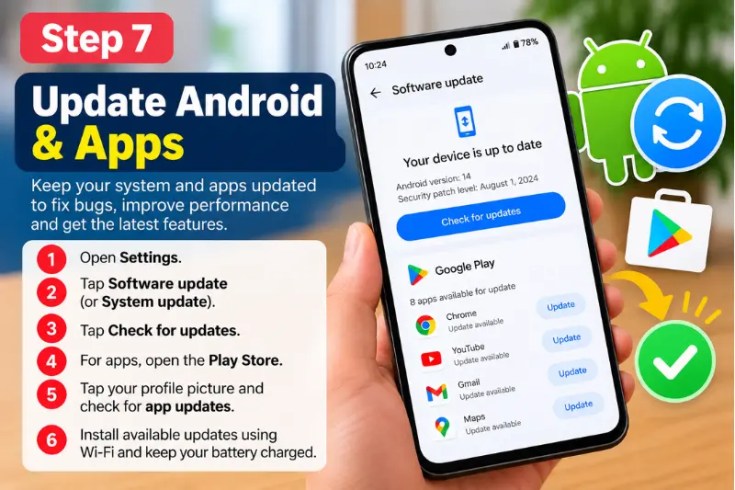
Updates are often applied to fix bugs and stability issues that lead to slowdowns Outdated apps can also clash with the rest of your system.
For Android itself, open Settings, search for Software update or System update, and tap Check for updates. For apps, open the Play Store, tap your profile picture, and check the update section.
Use Wi-Fi and make sure the battery is well charged before a big update. One caveat: newer software isn’t always kinder to old hardware, and some updates demand more than an aging phone can comfortably give. If your phone no longer gets official updates, don’t install files from random websites to make up for it.
8. Switch to Lighter Apps or Mobile Sites

Some apps are heavy on memory and processing power, which hurts on older phones. Where you can, try a lighter alternative:
- Use social media through your mobile browser instead of the full app.
- Pick a simple email app over one stuffed with extras.
- Skip graphics-heavy games.
- Use web versions of services that work fine in a browser.
- Delete apps whose features you hardly use.
Not every service has a “Lite” version, and some old Lite apps are no longer maintained. Stick with trusted apps and sites.
9. Clean Out Old Photos, Videos, and Downloads

Thousands of photos and a pile of large videos can eat a huge share of your storage. Set aside some time to go through these places:
- Downloads
- Videos
- Documents
- Screenshots
- Duplicate photos
- Files saved from messaging apps
Your file manager will help you find the biggest files, and Google’s Files app is good at spotting junk. If you use cloud backup, check that everything is actually synced before you delete local copies. Depending on your settings, deleting a synced photo can remove it from the cloud too.
10. Simplify Your Home Screen

Live wallpapers and widgets look great, but they use system resources. On an old phone, a simpler home screen can lighten the load.
- Swap the live wallpaper for a regular image.
- Remove widgets you rarely look at.
- Clear out shortcuts you don’t use.
Try the default launcher if your current one is slow.
It won’t transform every phone, but it costs nothing to try, and a tidier home screen is easier to use anyway.
11. Check the Battery

An aging battery causes more than short battery life. Depending on the phone, a worn battery can affect how reliably it performs, and you might notice random shutdowns or unusual heat.
Open Settings > Battery and look at which apps use the most power. Some phones also show a battery health reading, though many don’t. If the battery is clearly worn out, replacing it may bring back some reliability. It won’t make the processor faster or add RAM, though.
One safety note: if the battery looks swollen, stop using the phone and take it to a professional. Never try to puncture or repair it yourself.
12. Keep It Cool

If your phone slows down during games, videos, or heavy multitasking, heat might be the cause. When it gets too hot, a phone throttles its performance to protect the internal parts, and that’s when lag shows up.
- Keep it out of direct sunlight.
- Don’t play demanding games while charging.
- Use a suitable charger.
- Don’t cover it with thick material while it charges.
- Take a break from heavy tasks if it gets unusually hot.
If it heats up when you’re not even using it, check your battery usage and think about which apps you installed recently. And don’t put a hot phone in the fridge or freezer. The sudden temperature change can damage it.
13. Trim Automatic Syncing

Email, photo backups, contacts, and calendars all sync in the background. That’s handy, but some apps refresh far more often than they need to. If you have an app you open once a month, it probably doesn’t need to update itself all day.
Look through your apps and turn off syncing for the ones you don’t need, where Android lets you. Just don’t switch off everything, because your contacts, calendar, email, and backups depend on it. The goal is less unnecessary background work, not fewer useful features.
14. Try a Simpler Launcher

The launcher controls your home screen, icons, and app drawer. Some come loaded with themes and effects that can slow down an older phone. If your home screen is slow to load, switch back to the launcher that came with the phone:
- Open Settings.
- Search for Default apps.
- Tap Home app.
- Choose the launcher you want.
If you’d rather use a third-party launcher, download it from a trusted source and check what permissions it asks for. Keep your expectations modest, too. If the real problem is low RAM or an old processor, the difference may be small.
15. Factory Reset (Last Option)

If nothing else has worked, a factory reset might be the answer. It deletes your apps, settings and locally stored data, and takes the phone back to its original software state. That can fix problems caused by corrupted settings or a troublesome app.
- It deletes the data on your phone, so back everything up first.
- Back up your photos, videos, contacts, and documents.
- Make sure you remember your Google account login.
- Open Settings and search for Factory reset or Erase all data.
- Read the information on the screen and follow the instructions.
- Set the phone up again.
The steps vary a little between brands. After the reset, install only the apps you really need, and test the phone before adding more. If it’s still slow on a clean setup, the cause is likely the hardware or simply the phone’s age.
A Few More Habits Worth Having
Skip RAM booster apps. The ones that promise one-tap speed-ups rarely deliver. Android already handles memory by itself, and many of these apps show ads, keep closing other apps, or run in the background themselves. Removing apps you don’t need and using the built-in storage tools works better.
Close extra browser tabs. A lot of open tabs eat memory, especially on phones with little RAM. If one site keeps freezing your browser, try opening it in a different browser.
Check your connection. Sometimes the phone isn’t the problem. If apps stored on the phone run fine but websites crawl, your internet is probably to blame. Try switching between Wi-Fi and mobile data.
Keep some storage free. Don’t wait for the low-storage warning. Check in now and then and clear out what you don’t need.
Blame the newest app first. If the lag started right after you installed something, update it, check its battery and background usage, or uninstall it for a while to see if things improve.
Still Slow? Here’s What Might Be Going On
| Problem | Likely cause | What to try |
| Apps keep closing | Low RAM or a buggy app | Run fewer apps at once |
| Frequent freezing | Software or hardware trouble | Update apps and have the phone checked |
| Storage almost full | Too many files and apps | Delete what you don’t need |
| Battery drains fast | Battery wear or background apps | Check battery usage |
| Phone gets very hot | Heavy apps or hardware issues | Cut back on demanding tasks |
| Games lag | Old processor or graphics chip | Lower the game settings |
| Online apps load slowly | Weak connection | Try another network |
| Slow even after a reset | Hardware limits or damage | Consider a professional repair |
Older phones have limits. With very little RAM, an aging processor, or outdated software, some modern apps just won’t run smoothly no matter how clean the phone is. If it still handles what you need, these tips can keep it going longer. If it can’t run the apps you depend on, or it no longer gets security updates, it may be time to replace it.
Frequently Asked Questions
How can I speed up an old Android phone without resetting it?
Restart it, clear app caches, uninstall unused apps, free up storage, shorten animations, and limit background activity. None of that touches your personal files.
Does clearing cache make a phone faster?
It can help when one app is bloated or misbehaving, and it frees up some space. It won’t add RAM or processing power.
How do I speed up a phone with 2GB of RAM?
Remove apps you don’t need, avoid running several heavy apps together, shorten animations, and use lighter apps or mobile websites. Be realistic, though. 2GB is tight for many modern apps.
Will deleting photos speed up my phone?
Only if your storage is nearly full. If storage isn’t the issue, it won’t change the phone’s speed.
Can an SD card help?
It can hold photos and videos, which frees up internal storage. It doesn’t add RAM or make apps run faster.
Do RAM cleaner apps work?
Mostly no. Android manages memory on its own, and some cleaners use up resources themselves.
Will a factory reset make my old phone faster?
It can, if software problems or a bad app are the cause. It can’t fix an old processor, damaged hardware, or every battery issue.
Why does my phone lag during games?
It might not have enough processing power or memory for the game. Turn down your graphics settings, close any other apps and keep your phone cool.
How often should I restart my phone?
Not every day. Restart it when it gets unusually slow or apps start freezing.
Should I just buy a new phone?
Not necessarily. Try the basics first. But if it’s still slow after a clean reset, can’t run the apps you need, has serious battery trouble, or has stopped getting security updates, replacing it makes sense.
Conclusion
A slow phone is annoying, but you can often fix it without spending anything. Start with the basics: restart it, delete apps you don’t use, and clear out files to free up space. If it still drags, shorten the animations and limit background activity.
The best approach is to work out what’s actually causing the slowdown and fix that, rather than changing every setting or installing “cleaner” apps. A bit of regular upkeep can make an old phone much nicer to use and get you more time out of it.


